

Need to convert a DOCX file to PDF on Windows without wrestling with broken formatting? You are in the right place. A good PDF should look the same on every screen, print cleanly and be easy to share — whether you are sending a CV, invoice, school assignment or signed form.
In this guide, you will learn how to convert a DOCX file to PDF on Windows using four practical methods. We will also show why Herisoft Writer is a convenient choice when you want a simple desktop workflow, local files and no Microsoft Word subscription.
Quick answer: For a fast offline conversion, open the DOCX file in Herisoft Writer, review the print preview, choose PDF as the output and save the finished document. Your original DOCX stays editable, while the PDF is ready to send or print.
In short: To convert a DOCX file to PDF on Windows without uploading it, open the document in Herisoft Writer, check Print Preview and export the final copy.
How to Convert a DOCX File to PDF on Windows: 4 Easy Methods
To convert a DOCX file to PDF on Windows, the right option depends on what matters most: privacy, collaboration, compatibility or speed. Here is the short version:
| Method | Best for | Keep in mind |
|---|---|---|
| Herisoft Writer | Offline work and everyday documents | Desktop app for Windows with DOCX editing and PDF export |
| Microsoft Word | Users who already have Word | Some features depend on your version or license |
| Google Docs | Collaboration in a browser | Your document is uploaded to an online account |
| LibreOffice | A broader free office suite | Larger installation with more tools than you may need |
1. Convert DOCX to PDF with Herisoft Writer
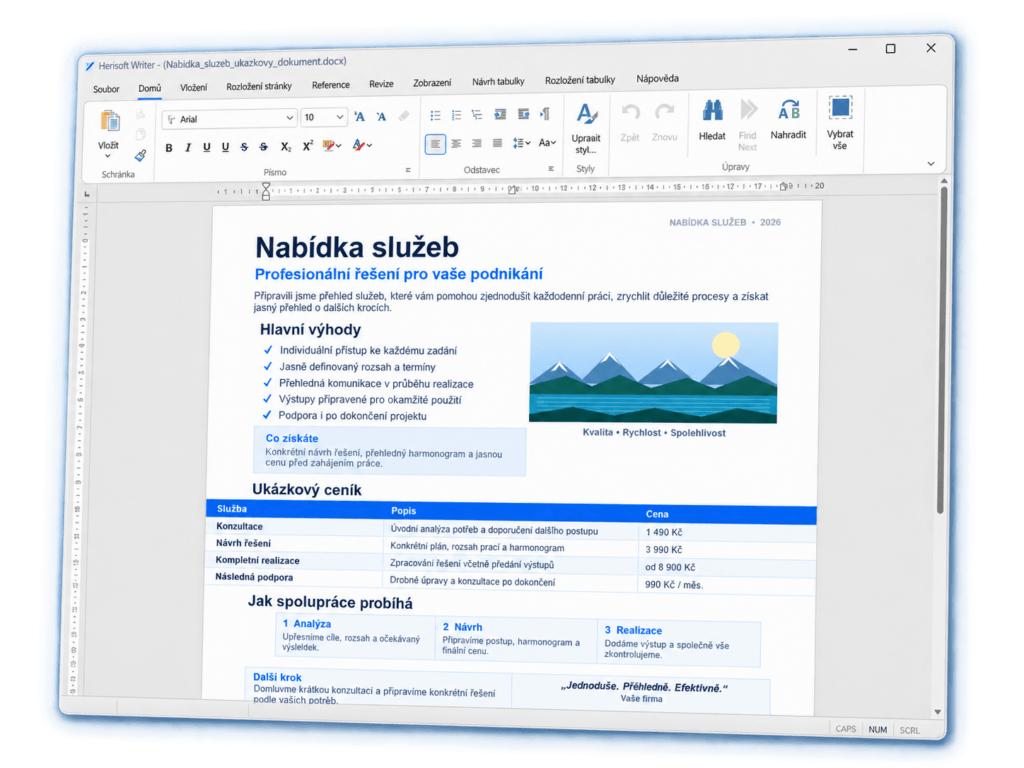
Herisoft Writer is a straightforward word processor for Windows 10 and Windows 11. It can open and edit DOCX, RTF, TXT and HTML files, work with tables and images, check spelling, print documents and export finished work to PDF.
It is a particularly good fit when you want to keep a document on your own computer. There is a free version to try, and the Pro license is a one-time purchase rather than a monthly subscription. You can start with the free download and decide later whether the extra convenience of Pro is useful for you.
Step-by-step: DOCX to PDF in Herisoft Writer
- Download Herisoft Writer from the official Herisoft website and install or start the application.
- Choose File → Open and select the document with the
.docxextension. - Read through the document once. Pay special attention to headings, tables, images, headers, footers and page breaks.
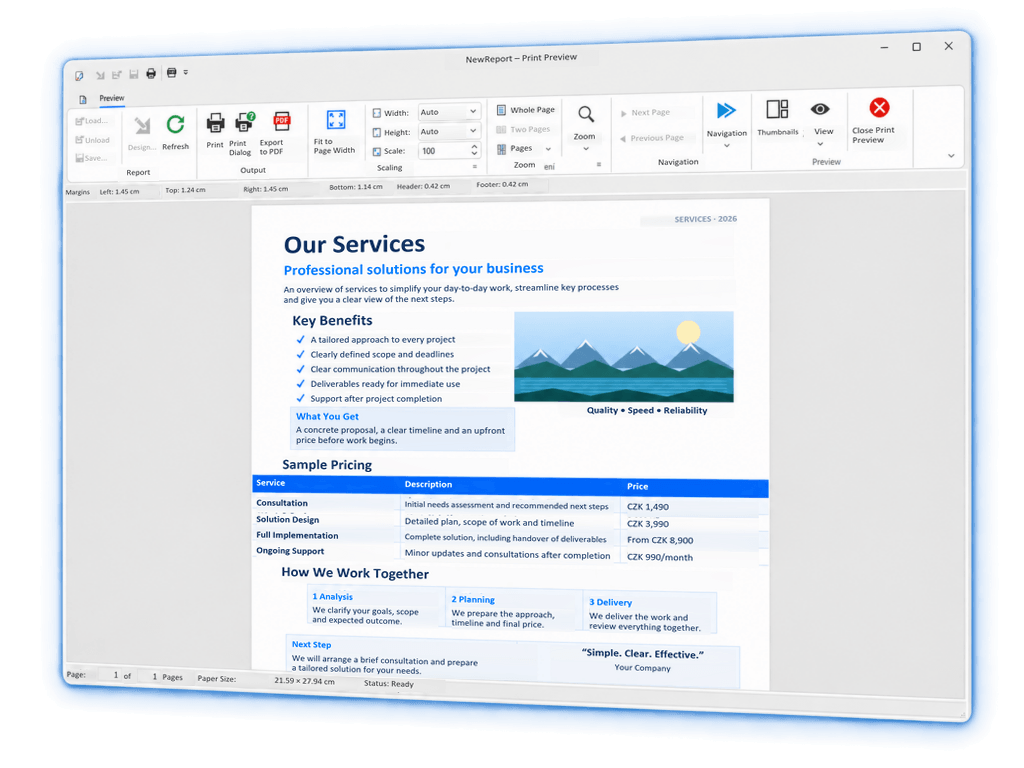
- Open Print Preview so you can see how the pages will look before exporting.
- Choose the PDF export or print-to-PDF option, then select a clear file name and destination folder.
- Open the saved PDF and quickly check every page before you send it to someone else.
Good habit: keep the original DOCX as your editable master file. When you make a change later, update the DOCX first and create a new PDF from it.
2. Convert a DOCX file to PDF in Microsoft Word
If Microsoft Word is already installed, it can convert the document directly. Open the DOCX file and choose File → Save As or File → Export. Select PDF, choose the quality or page range if those options are available, and save the file.
Word is a strong choice when the document contains advanced features created in Word itself. If you want to convert a DOCX file to PDF on Windows quickly, open the exported PDF separately. A missing font, a shifted table or an unexpected blank page is much easier to spot in the finished PDF than in the editor.
3. Save a DOCX as PDF with Google Docs
Google Docs is useful when several people need to comment on or edit the same document. Upload the DOCX file to Google Drive, open it with Google Docs and choose File → Download → PDF Document (.pdf).
- Your document is uploaded to an online account, so consider whether that is appropriate for confidential files.
- Complex layouts may change during import, especially with unusual fonts, page breaks or floating images.
- Download the PDF and compare it with the original before sharing it.
4. Export DOCX to PDF with LibreOffice
LibreOffice Writer is a free desktop alternative that includes a direct PDF export. Open the DOCX file and choose File → Export as PDF, or use the PDF button on the toolbar.
LibreOffice is a sensible option if you also need spreadsheets and presentations. If your main task is opening documents, making everyday edits and exporting to PDF, a smaller tool such as Herisoft Writer may feel faster and less distracting.
How to keep the PDF layout correct
How to convert a DOCX file to PDF on Windows is only the first half of the job. Before sending the file, run this short quality check:
- Check the first and last page for unwanted blank space.
- Look at every table and make sure no column or row has moved.
- Confirm that images are sharp, aligned and not cut off at the page edge.
- Review page numbers, headers, footers and line breaks.
- Make sure important text is not hidden by a page break.
- Open the PDF in a second viewer or on another device if the document is important.
- Use a descriptive filename, for example
offer-client-2026-10.pdf.
Privacy tip: If a document contains personal, financial or business information, an offline desktop workflow can be preferable to uploading the file to an online converter. Always choose a tool and storage location you trust.
DOCX to PDF export or Print to PDF?
Both approaches can work. Direct export is usually designed for document files and may give you more control over quality and page range. Printing to PDF uses a virtual printer built into Windows and is available in many applications.
Use print-to-PDF when you need to capture exactly what the application displays. Use an export command when you want the application’s document-specific PDF options. In either case, open the final file and check it — a conversion is not finished until the PDF looks right.
Common problems after converting DOCX to PDF
A table moved to another page
Check the table width, paragraph spacing and page margins in the original DOCX. A smaller font or a manual page break can sometimes prevent an awkward split.
The PDF has a missing or different font
Use a common installed font where possible. If the document is important, inspect the PDF on another computer before sending it.
An image is cut off
Reduce the image width slightly and check the page margins. The print preview is the quickest place to catch this problem.
The document looks different in an online converter
Online services first have to import and interpret the DOCX file. For a private document or a layout-sensitive file, try a desktop application and compare the result.
Frequently asked questions
Can I convert a DOCX file to PDF for free on Windows?
Yes. You can use the free version of Herisoft Writer, LibreOffice, Google Docs or the built-in Microsoft Print to PDF option. Choose the method that matches your need for offline use, collaboration and compatibility.
Can I convert DOCX to PDF without Microsoft Word?
Yes. Herisoft Writer and LibreOffice can open DOCX files and create PDFs without requiring Microsoft Word. They are useful when you want a dedicated desktop tool instead of a browser-based converter.
Can I convert DOCX to PDF without uploading the file?
Yes. Use a desktop application such as Herisoft Writer or LibreOffice. The document can stay on your Windows computer throughout the process.
Will converting DOCX to PDF preserve the formatting?
It usually preserves the visible layout, but fonts, tables, images, page breaks and headers should still be checked. Different programs can interpret complex DOCX styles in slightly different ways.
Can I edit a PDF after conversion?
PDF is best treated as a final sharing format. Keep the original DOCX for future edits, then export a new PDF when the document is ready.
Conclusion: a simple offline workflow that works
To convert a DOCX file to PDF on Windows, open the document in the tool that fits your workflow, review the print preview and inspect the finished PDF. Google Docs is convenient for collaboration, LibreOffice is a broad office suite, and Microsoft Word is a natural choice for existing Word users.
If you want a simple Windows application for everyday documents, try Herisoft Writer. Open your DOCX, make any final edits, export to PDF and see whether the workflow suits you — the free version lets you test it before you decide.
Ready to create your PDF?
Try Herisoft Writer on Windows and keep your document workflow simple.